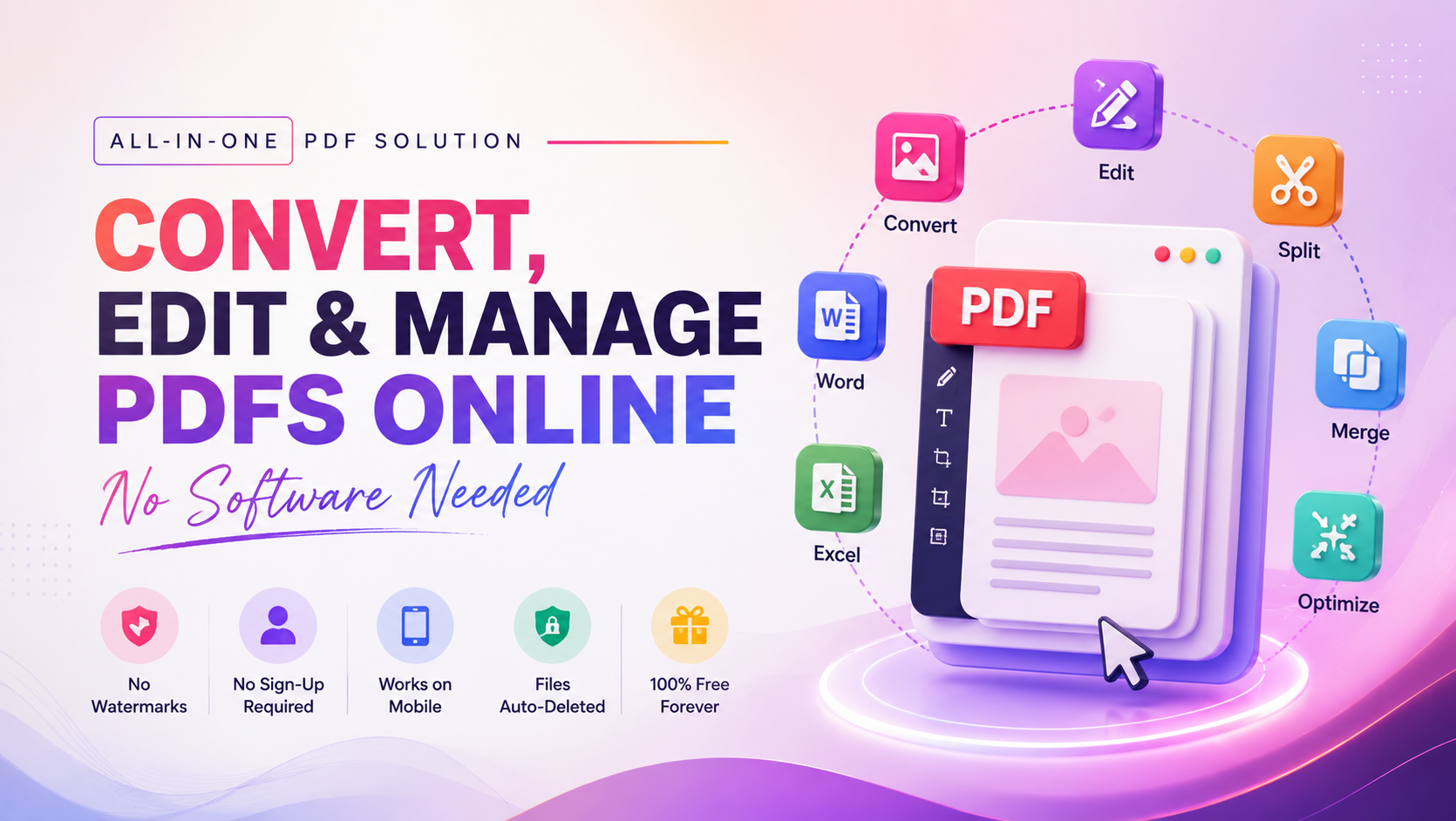
The easiest way to convert images to pdf online
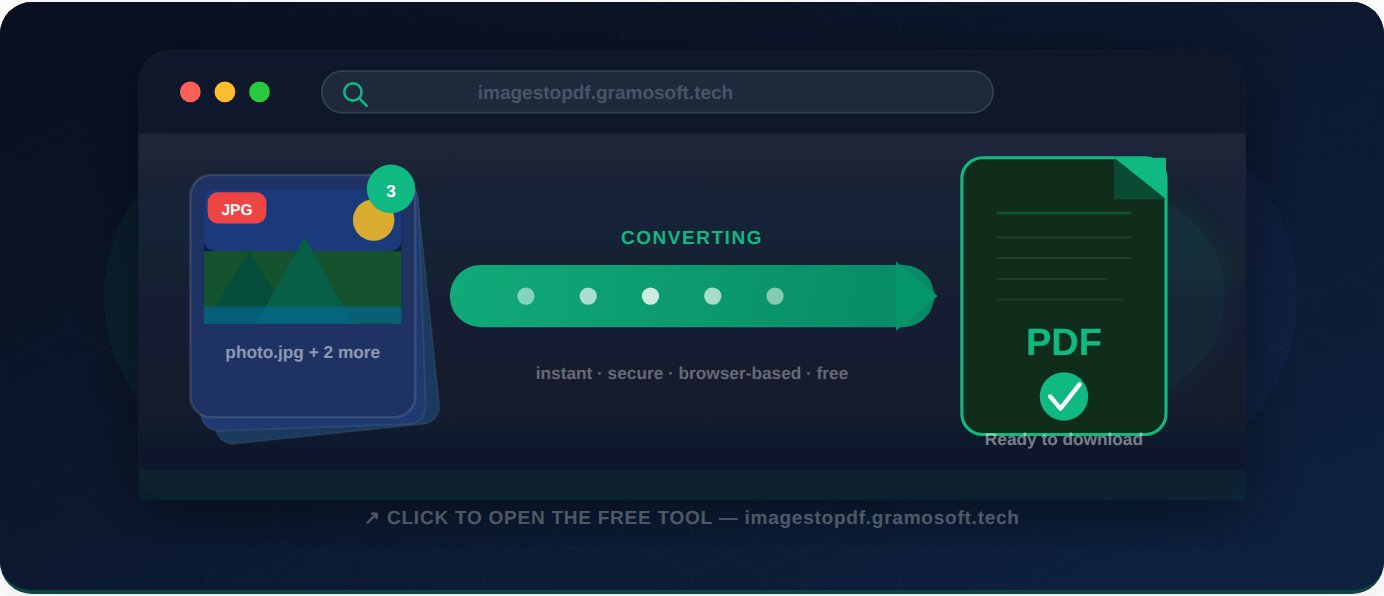
Need to send photos as a single PDF without downloading extra software? Gramosoft's free online image to PDF converter does it in seconds — right in your browser, with no watermarks and no account required.
What Makes This Tool Stand Out
Many online converters add watermarks, impose file limits, or force you to create accounts. Gramosoft gives you a clean, professional PDF with zero strings attached.
 Instant Processing
Converted in seconds. No queues, no waiting.
 100% Private
Files are deleted immediately after conversion.
 Batch Conversion
Upload many images, get one merged PDF.
 Zero Registration
No email, no account. Just open and convert.
 Layout Control
Fill Page, Fit to Image, or Aspect Ratio.
 Mobile Ready
Works on iPhone and Android browsers.
How to Convert an Image to PDF — Step by Step
The complete process takes just a few seconds. Here is exactly what to do:
Visit gramosoft Image to PDF and click Upload Images. Select one or more JPG, PNG, JPEG, or WEBP files from your device. Multiple files are fully supported for batch conversion.
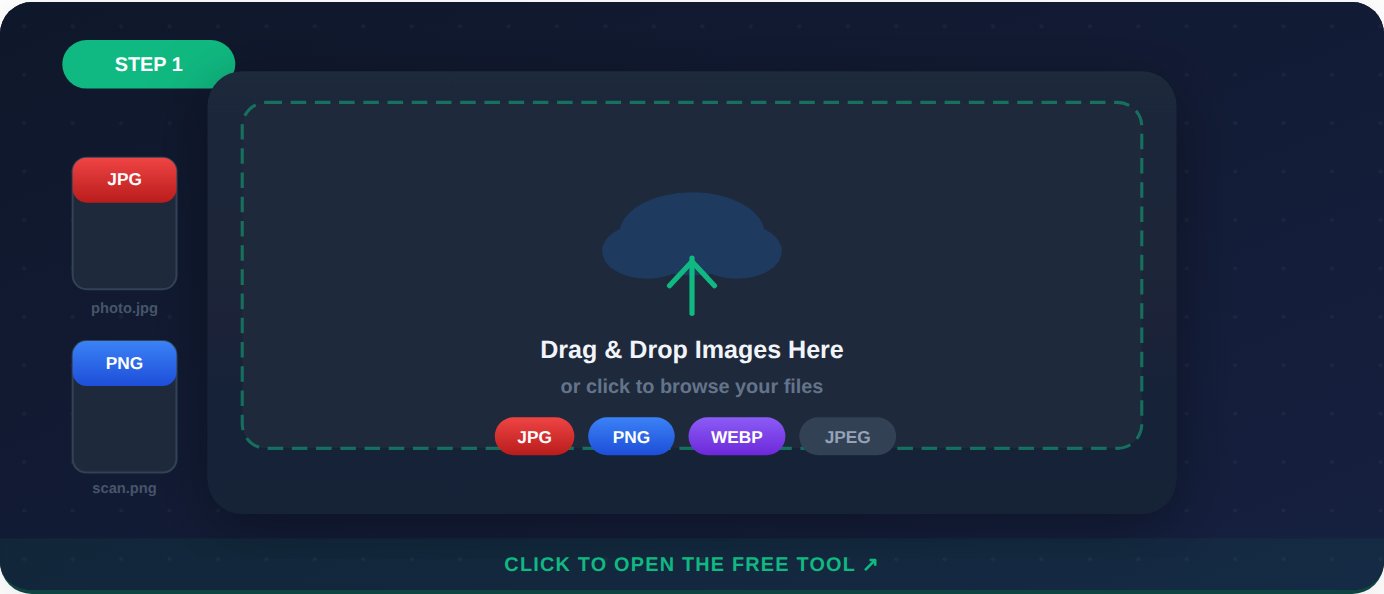
If you upload more than one image, drag the thumbnails to set the order in which they will appear in your PDF. Each image becomes a separate page inside the final document.
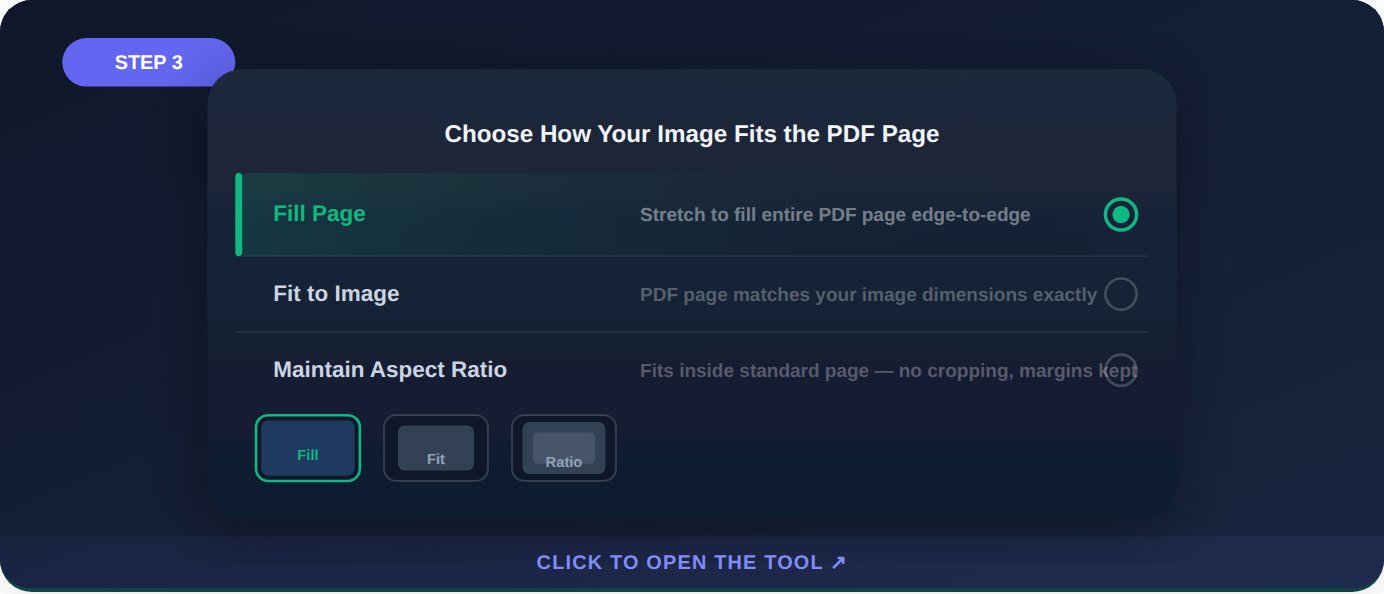
Select how each image should fill its PDF page: Fill Page (edges to edges), Fit to Image (page sized to the image), or Maintain Aspect Ratio (centred with margins, no cropping). Maintain Aspect Ratio is the safest for mixed-orientation photos.
Click Convert to PDF. Within seconds, a success screen appears. Hit Download File to save your PDF instantly — or click Start Over to run another conversion.
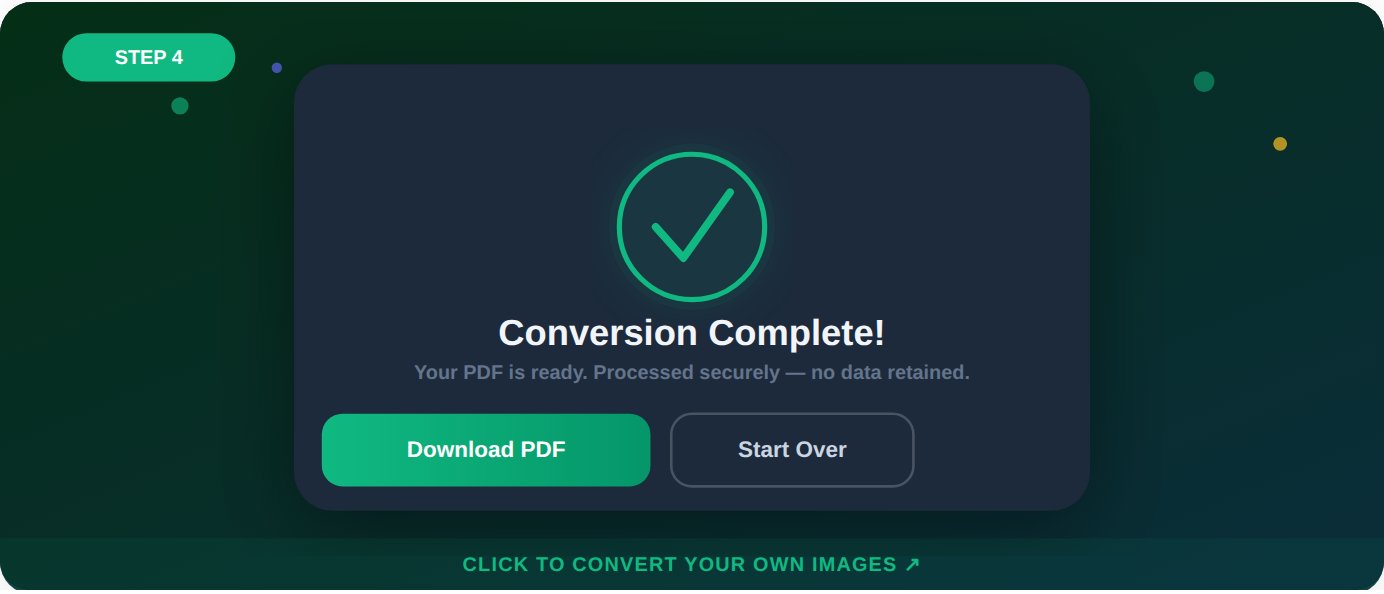
No watermarks, no email required, no hidden fees. A clean PDF lands in your downloads folder in under a few seconds.
Ready? Convert Your Images Now
Free, instant, and works in any browser — no installation, no account needed.
Open Free Image to PDF ConverterWho Uses This Image to PDF Converter?
This tool is useful in a wide range of everyday situations:
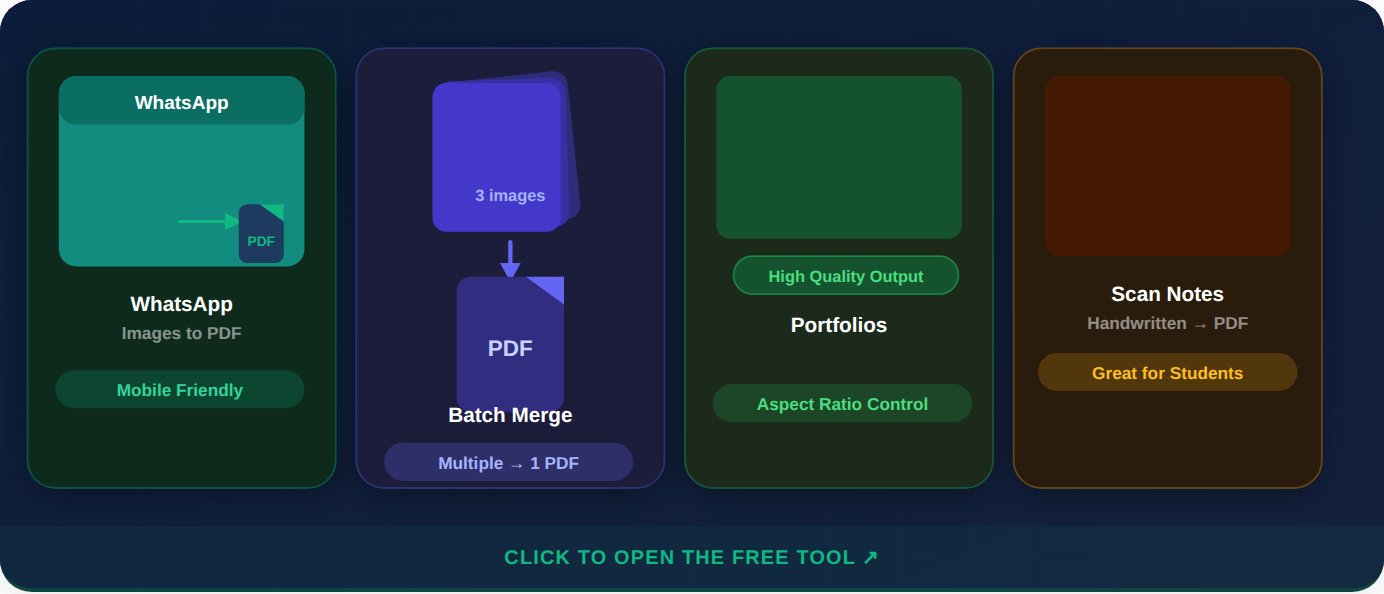
 Convert WhatsApp Images to PDF
Documents shared over WhatsApp arrive as images. Bundle them into a single PDF you can forward officially or file away — directly from your phone browser, no app needed.
 Merge Multiple Images into One PDF
Upload scanned receipts, ID copies, or project photos all at once. The batch converter merges everything into a tidy multi-page PDF — no desktop software required.
 Professional Portfolios and Reports
The "Maintain Aspect Ratio" option ensures your images are never stretched or cropped — ideal for client presentations, portfolios, and official document submissions.
 Students and Handwritten Notes
Photograph handwritten notes, diagrams, or textbook pages and convert them to PDF instantly — perfect for assignment submissions and study material sharing.
Frequently Asked Questions
Is this image to PDF converter really free?
Yes — completely free with no hidden charges, no sign-up required, and no watermarks on your output PDF. There is no paid tier or upgrade prompt.
What image formats are supported?
You can upload JPG, PNG, JPEG, and WEBP files. Most photos from your phone camera roll or browser downloads work without any prior conversion.
Can I convert multiple images into one PDF?
Absolutely. Upload as many images as you need — they will all be merged into a single PDF with each image on its own page. There is no limit on the number of images per session.
Are my uploaded images stored on the server?
No. Files are processed immediately and then discarded. Nothing is stored on any server — your data remains completely private and secure.
Does it work on mobile — iPhone or Android?
Yes. Open Gramosoft Image to PDF in any mobile browser, select images from your camera roll, and download the PDF in seconds. No app installation is required.
Can I control the PDF quality and file size?
The three fit options control how images are scaled, which indirectly affects output size. "Fit to Image" tends to produce smaller file sizes for portrait-style photos.
How do I convert a WhatsApp image to PDF on my phone?
Save the image to your phone gallery, open Gramosoft Image to PDF in your mobile browser, upload the image, and hit Convert.
Start Converting Images to PDF — For Free
No account. No watermarks. No limits. Your first PDF is ready in under a few seconds.
Convert Images to PDF Free